Setting up your organisation
Create an account, choose a plan, configure your state, and invite members.
Creating your account with DAPC Enterprise Portal is easy whether you are setting up an organisation from scratch. Follow the steps below.
Create account
To set up your organisation within the portal, you will first need to create an account.
On the log in page, click the link at the bottom: Create an account.
Fill in your name, email, and password as prompted.
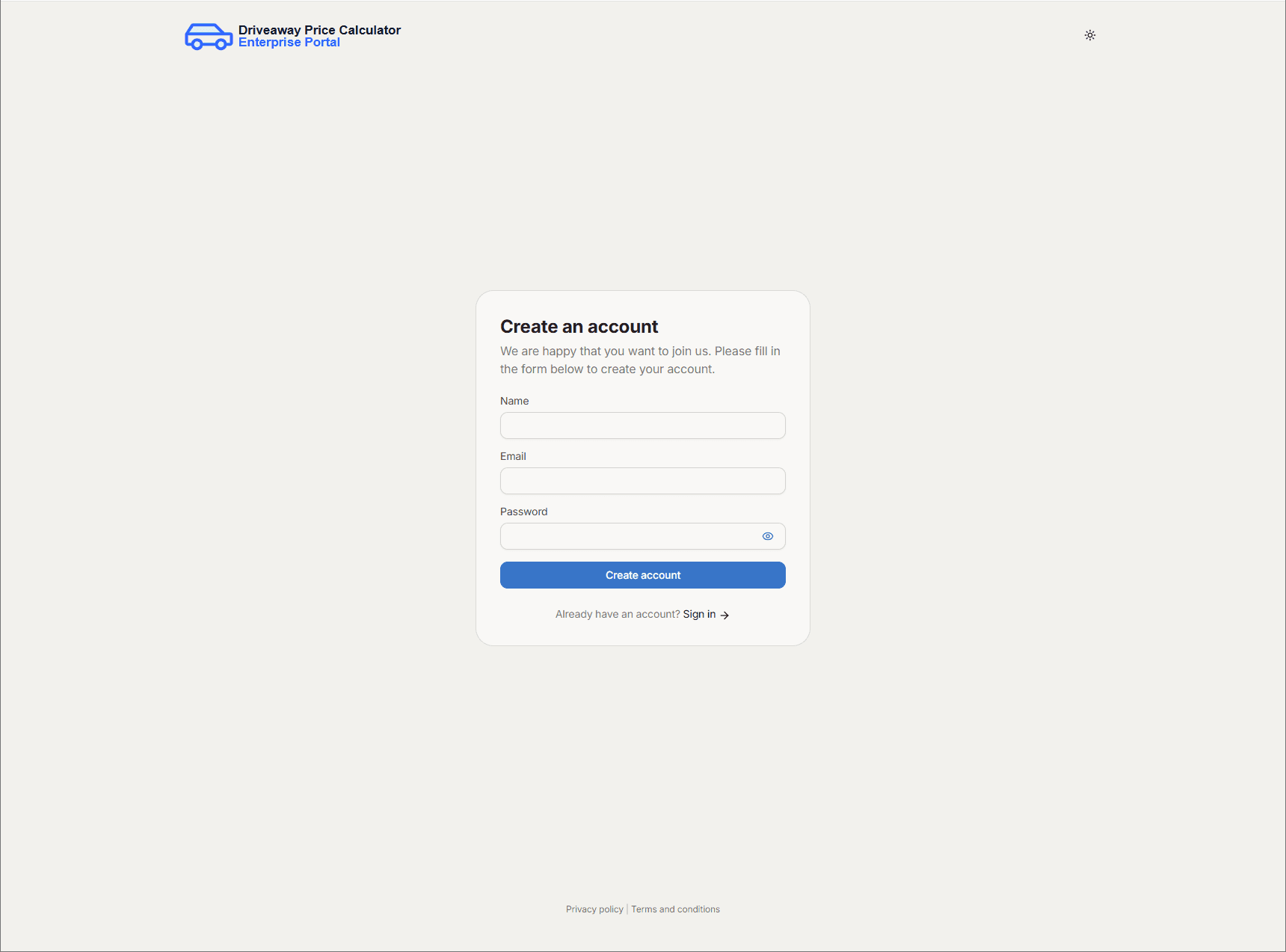
Once complete, an automatic verification email will be sent to your designated email. Follow the prompts to verify your account and finalise account details.
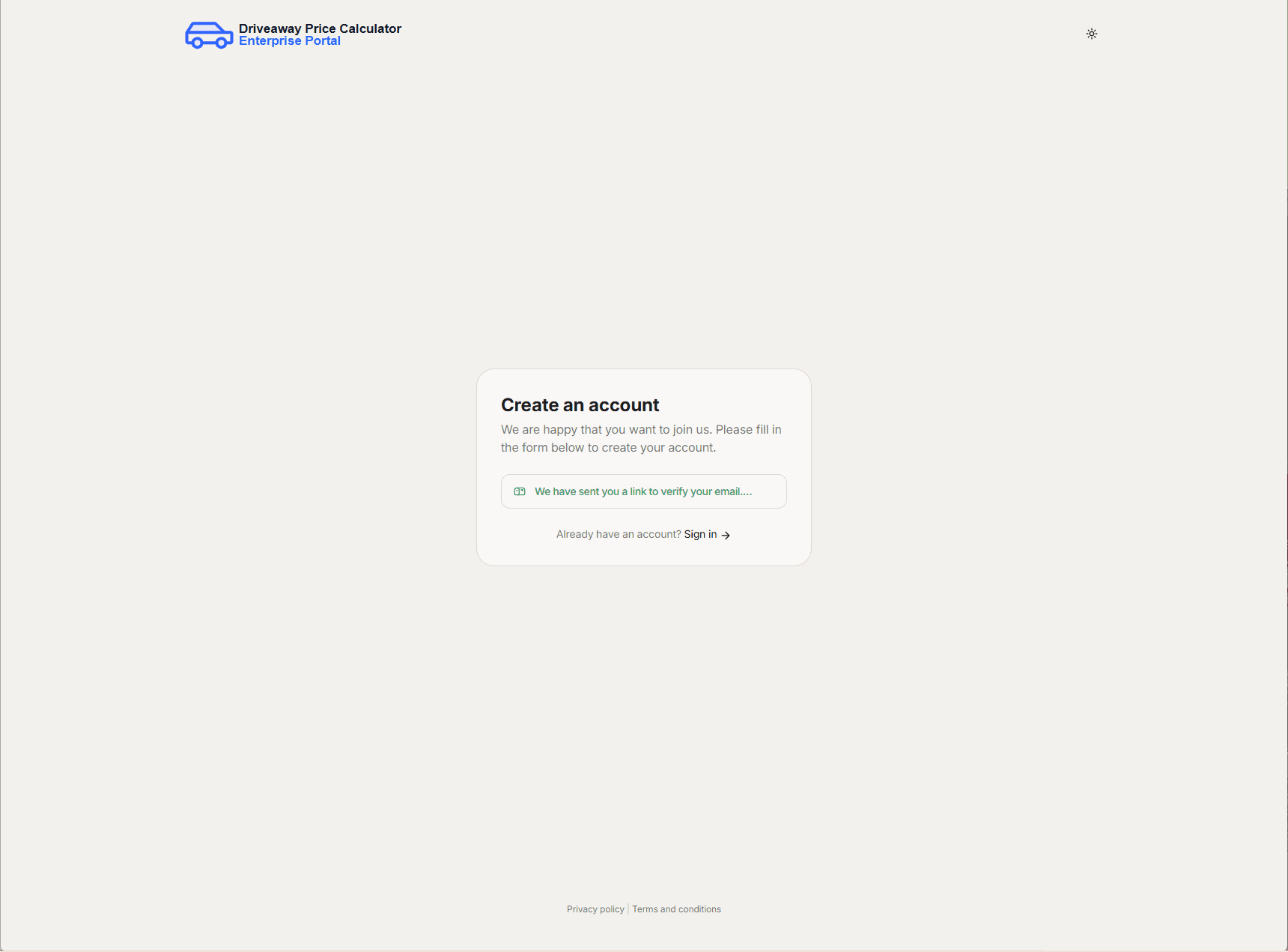
You will be prompted to set up your organisation. Provide the organisation name and click Create organisation; you will be redirected to choose a plan.
Choose a payment plan
We currently have three plans on offer: Dealer Pro, OEM Accelerate, and Enterprise. Each plan offers different benefits depending on your needs.
Every plan includes a free 30 day trial so you can see what works best for you. See Choosing the right plan for you for more details on each package.
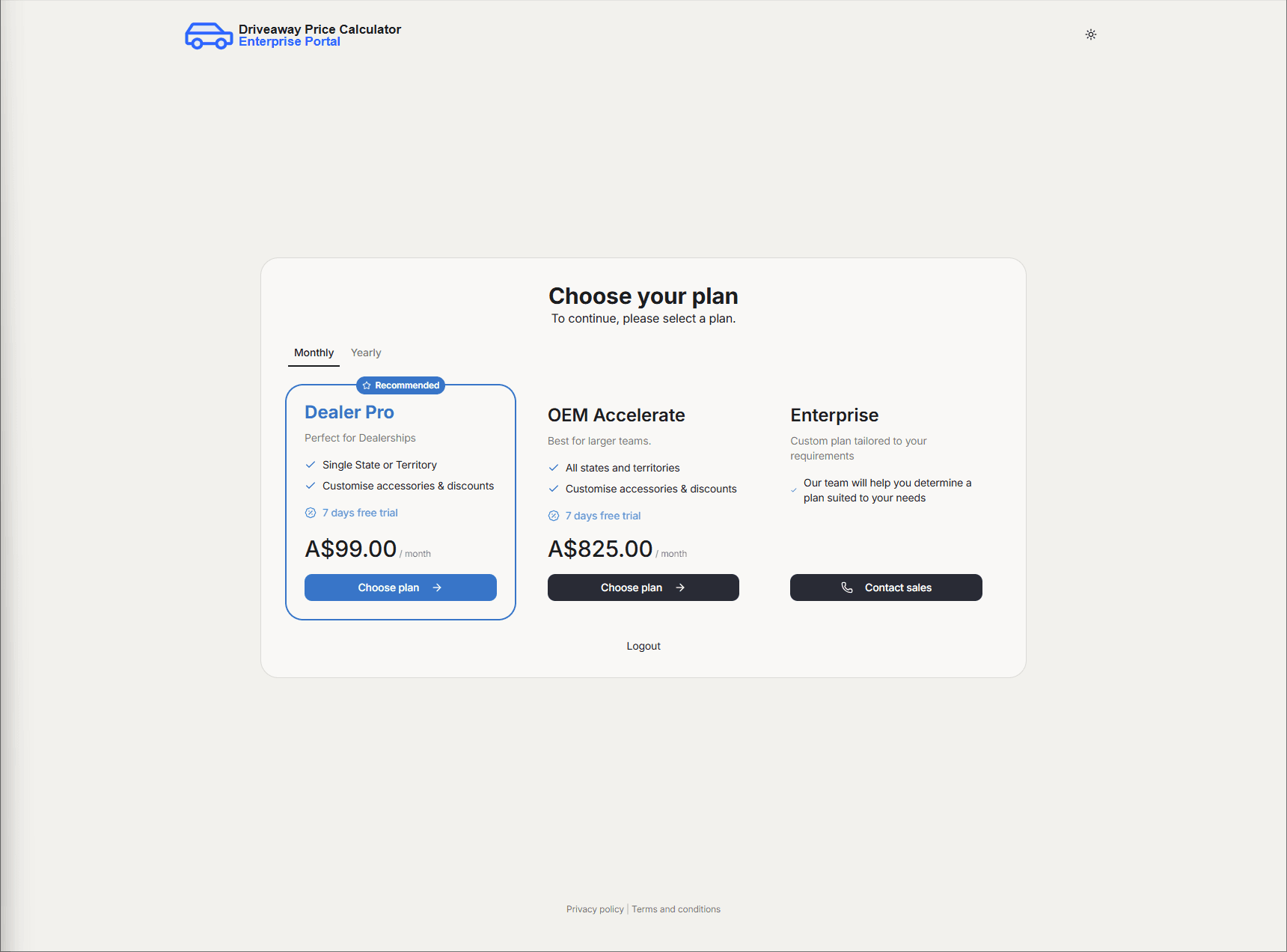
Once you have chosen the plan that suits you, you will be prompted to fill in payment details. There are no upfront costs, so no charges will be taken at this time or during the free trial period.
Only once the 30 day free trial period has ended will any charges be made to your account.
After you have filled in the details and clicked Start trial, you will be taken to the DAPC Enterprise Portal.
Choose your state
This step applies to the Dealer Pro package only.
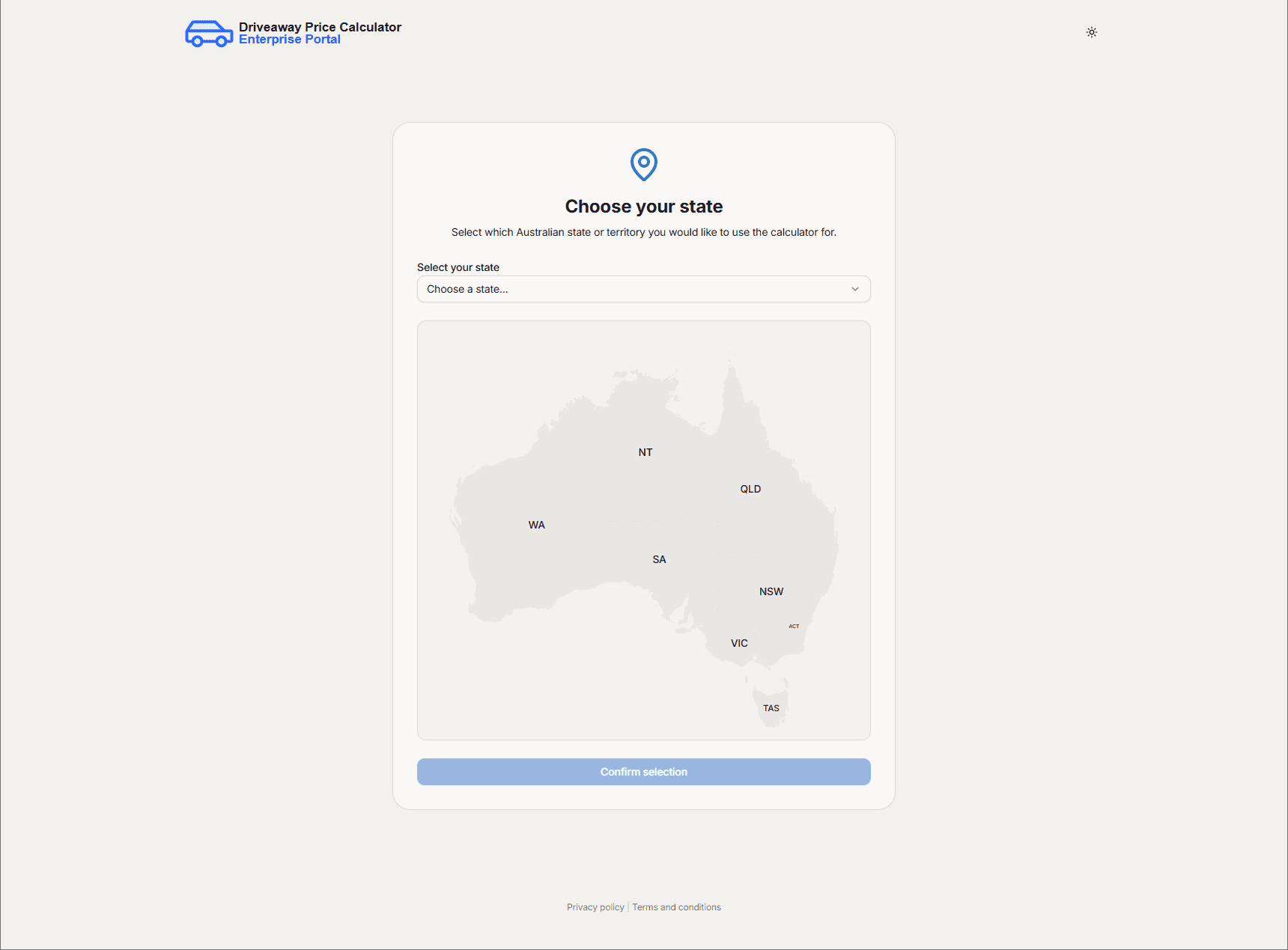
Choose the state or territory you require for the calculator. If you choose the wrong state or need to change it later, contact our support team at support@gradient.com.au.
Invite members
You can invite team members to create their own account under your organisation.
See Invite team members in Organisation settings for steps.